10 Best AI Tools to Animate Photos Into Video (2026)
The best AI tools to animate a photo into video in 2026 include Google Veo 3.1, Runway, Kling AI, Luma Dream Machine, Pika, and Vivideo, each turning a single still image into a short moving clip with camera motion, subject movement, or lip-synced speech. Some are free with a watermark, some are free without one, and the paid tiers add longer clips, higher resolution, and native audio. Which one is “best” really depends on what you’re animating and what you’re willing to pay for.
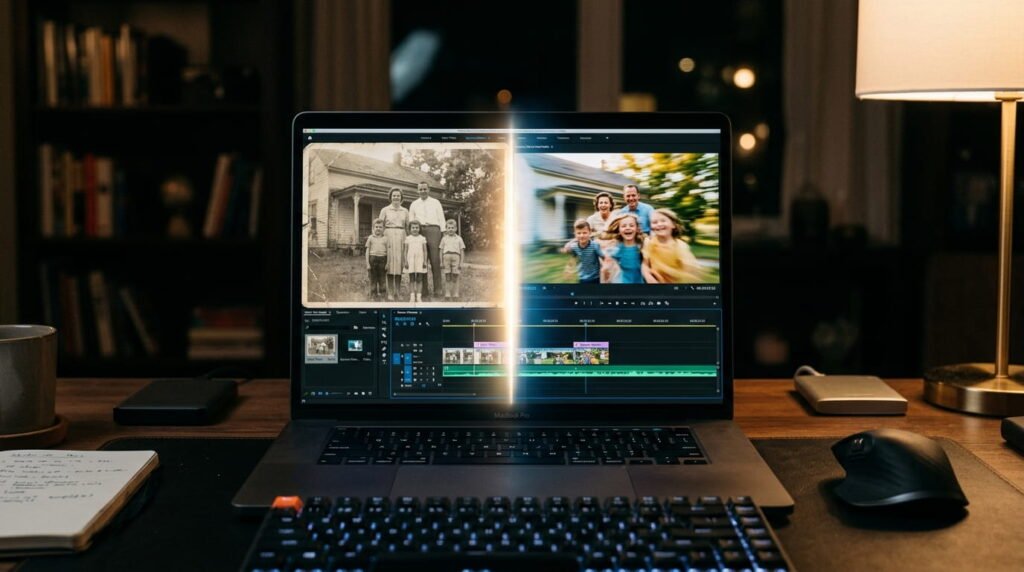
If you’ve ever stared at an old family photo, a product shot, or a piece of digital art and wished it could move, you’re not alone. Photo-to-video AI has gone from a novelty to a genuine content tool over the past year, and the field has gotten crowded fast. This guide breaks down which tools actually deliver, what they’re good at, and how to avoid wasting your free credits on a clip that looks warped or uncanny.
How AI Photo-to-Video Animation Actually Works
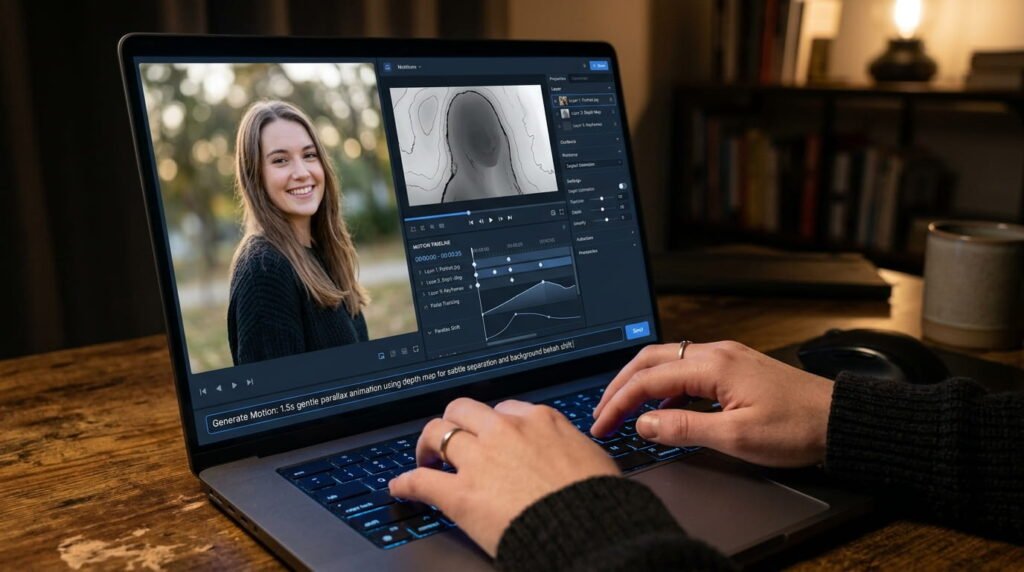
Image-to-video AI models don’t just add a simple pan or zoom. They analyze the depth, lighting, and subject in your photo, then generate new frames that plausibly continue the scene, whether that’s a person blinking and turning their head, clouds drifting across a sky, or a product slowly rotating under studio light. You upload a photo, add a short text prompt describing the motion you want, and the model fills in everything in between.
Most tools output clips between four and ten seconds long. Longer results usually mean stitching several short clips together rather than one continuous generation, though a few newer platforms now support up to a minute in a single pass.
Best AI Tools to Animate a Photo Into a Video
Here’s the rundown of the tools worth trying in 2026, based on what each one does best.
1. Google Veo 3.1 (Best Overall Quality)
Veo 3.1 is widely considered the strongest single-clip option for realism right now, and it’s one of the only major models generating native audio alongside the video, so footsteps, wind, or ambient sound come out synced to the motion. It’s accessible for free through Google Vids and Google Flow, with limited daily generations before you need a paid plan. If you only try one tool from this list, this is a reasonable place to start for general-purpose photo animation.
2. Runway (Best for Creative Control)
Runway remains the go-to for people who want to direct the shot rather than just describe it. You can set camera moves frame by frame, control motion intensity in specific parts of the image, and layer in editing tools without leaving the platform. It costs more than most competitors, but for marketers and video editors who already work in a timeline-based workflow, that control is worth paying for.
3. Kling AI (Best for Human Motion)
Kling has built a reputation for handling faces, hands, and clothing more naturally than most rivals, which matters a lot if you’re animating portraits or people. Second-by-second camera prompting gives you finer control over pacing, and pricing per clip tends to be lower than Runway or Veo, making it a solid pick if you’re animating a lot of portrait photos on a budget.
4. Luma Dream Machine (Best for Landscapes and Interiors)
Luma’s Ray3.14 update generates animations several times faster than earlier versions and outputs native 1080p without needing an upscale pass. It’s particularly strong on wide shots, landscapes, and interiors, where the camera movement feels closer to a drone or dolly shot than a static zoom. For high-end production work, Luma also supports true HDR export, which is unusual for a consumer-facing tool. There’s an iOS app too, so you can animate photos from your phone.
5. Pika (Best for Stylized and Artistic Looks)
Pika leans into artistic style controls rather than photorealism, which makes it a favorite among musicians, illustrators, and artists animating stylized artwork or album covers. If your source photo is already a painting, sketch, or anime-style illustration, Pika tends to preserve that look better than tools built around realistic footage.
6. Vivideo (Best Free Option Without a Watermark)
Most free image-to-video tools either cap your generations hard or stamp a logo across the clip. Vivideo offers a genuinely free tier with no watermark and access to more than 30 underlying models, so you can compare outputs from different engines without paying for each one separately. It’s a reasonable starting point if you just want to test whether photo animation is useful for you before committing to a paid subscription.
7. PixVerse and Seedance (Best for Fast Social Clips)
Both of these show up repeatedly in comparisons for one reason: speed. They generate clips quickly with minimal setup, which makes them a good fit for product photos and social content where you’re producing a lot of short clips rather than a single polished shot. Neither matches Veo or Runway on realism, but for a quick Reel or TikTok clip, that trade-off is often fine.
8. Hedra (Best for Talking Photos)
If you want a photo to actually speak, lip-synced to an audio track, Hedra is built specifically for that use case. Upload a portrait and an audio file, and it animates the mouth and expression to match. It’s a narrower tool than the others on this list, but for talking-head content, testimonials, or bringing an old photo “to life” with a voiceover, it’s purpose-built for the job.
9. LivePortrait (Best Free Option for Technical Users)
LivePortrait is an open-source model rather than a polished app, which means there’s a setup step most casual users will skip. But for anyone comfortable running it locally or through a hosted instance, it’s free and specifically tuned for realistic portrait animation, making it worth knowing about even if it’s not the easiest entry on this list.
10. OnReplay (Best for Multi-Photo Memory Films)
Nearly every other tool here animates one photo at a time. OnReplay takes a different approach, combining five to fifty photos into a finished two-to-three-minute film with music and pacing, without requiring any prompting or editing. If your goal is a gift, a memorial video, or a family retrospective rather than a single animated clip, this category of tool solves a different problem than the single-image generators above.
What Is the Best Free AI Tool to Animate a Photo?
Google Veo 3.1’s free tier, available through Google Vids and Google Flow, is currently the highest-quality free option for animating a single photo, including native audio. If you’re comfortable with a more technical setup, LivePortrait is free and specifically strong at portrait animation. For a no-signup, no-watermark experience, Vivideo is the simplest free pick.
Can AI really turn a photo into a realistic video?
Yes. Modern models like Veo, Kling, and Runway add camera motion, subject motion, and environmental effects such as drifting clouds or rippling water to a still photo. Results are strongest with clear, high-resolution images and a subject that has obvious room to move, and weakest with busy backgrounds, overlapping limbs, or reflective surfaces.
How long can an AI-animated photo video be?
Most tools generate clips between four and ten seconds per pass. A few platforms, including some listed above, support up to sixty seconds in a single generation, but the more common workflow is generating several short clips and stitching them together for a longer video.
Is it free to animate a photo with AI?
Most platforms offer a limited free tier, often with a daily or monthly cap on generations and sometimes a watermark on the export. Fully free, watermark-free options exist, including Vivideo and LivePortrait, but expect paid plans to unlock higher resolution, longer clips, and commercial usage rights.
Which AI tool is best for animating portraits without distortion?
Kling AI and LivePortrait are both frequently cited for handling faces naturally, avoiding the uncanny-valley effect that heavier facial animation can cause. A useful rule of thumb across any tool: keep the motion prompt subtle for close-up portraits, things like a slow push-in, natural blinking, or gentle hair movement, rather than asking for dramatic movement.
Can I animate multiple photos into one video?
Yes, though it depends on the tool. Single-image generators like Veo, Kling, and Runway are built to animate one photo per generation, so a multi-photo video means stitching several clips together yourself. Tools built specifically for multi-photo projects, like OnReplay, handle that combination automatically and add music and pacing without manual editing.
Choosing the Right Tool for Your Photo
There’s no single best AI photo animator for every situation. If you want the highest overall quality and don’t mind Google’s ecosystem, start with Veo 3.1. If you’re animating people and want natural motion on a budget, try Kling. If you need full creative control over camera movement, Runway is worth the subscription. And if you just want to test the waters for free before spending anything, Vivideo or LivePortrait will get you there without a credit card.
Whatever you pick, start with a clean, high-resolution source photo and a simple motion prompt. The tools in this space are improving quickly, and the gap between a stiff, artificial-looking clip and a genuinely convincing one usually comes down to how much restraint you use in the prompt, not which platform you chose.
Want more breakdowns of the newest AI creative tools? Check back on TechBySak for updated comparisons as these platforms evolve.