

How to Speed Up a MacBook Running Slow
You click an app and wait. The beach ball spins. Your fans get loud, your battery drains, and a five second task takes a minute. If that sounds like your day, you are in the right place. This guide shows you how to speed up MacBook performance using the tools already built into macOS, with no paid cleaner app needed. Most of these fixes take two minutes each. Some are instant. Whether you own a MacBook Air, a MacBook Pro, an iMac, or an older Mac from 2015, you can get real speed back today. Let’s find out why your Mac starts to slow, then fix it step by step.
Why Is Your MacBook Running Slow?
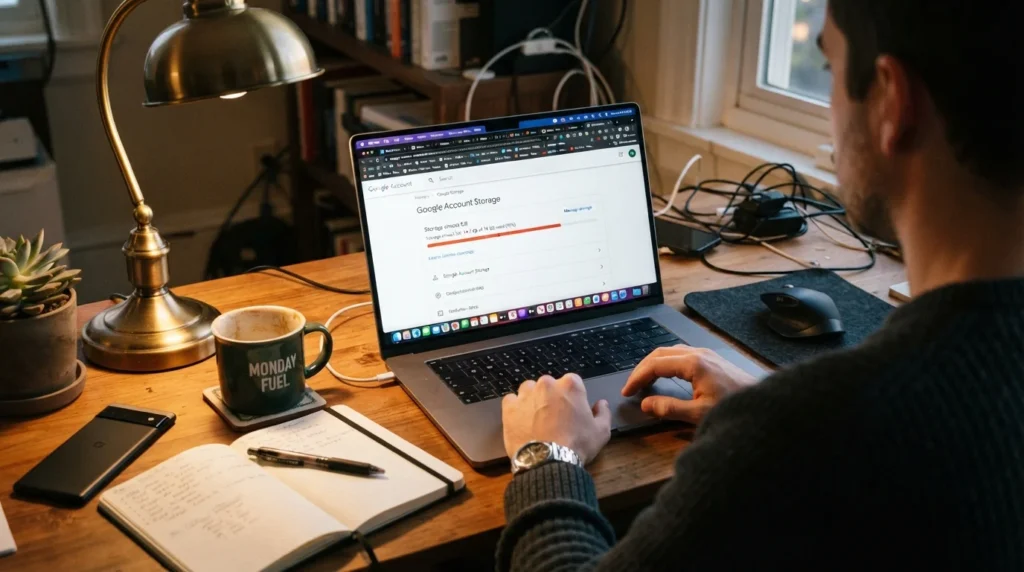
Your Mac is not broken. Something is eating its resources. Nine times out of ten it comes down to one of these: your startup disk is nearly full, too many apps launch at login, a background process is hogging the CPU, or your macOS and apps are out of date. Browser tabs are a quiet killer too. Every open tab keeps using RAM and CPU even when you are not looking at it. Old hardware plays a part as well. A 2013 MacBook Pro with 4 GB of RAM and a spinning hard drive will feel slow no matter what you do, because modern apps ask for far more than it can give. So before you buy a new Mac, find out why your Mac is dragging. Diagnose first, then fix.
If your Mac is running slow, these simple tips can help you speed up your Mac and speed up a Mac without expensive upgrades.
Restart Your MacBook to Speed It Up
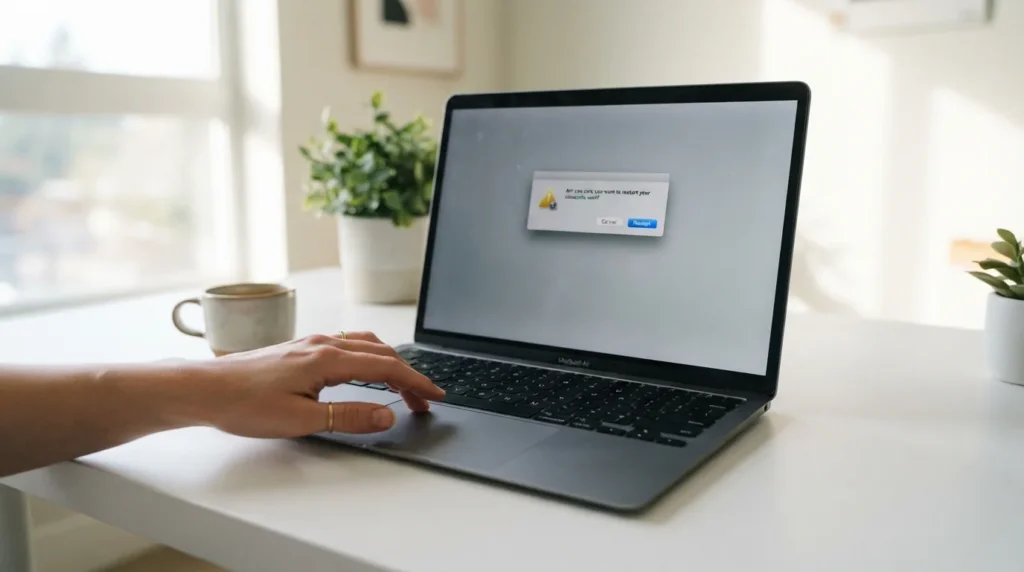
This sounds too simple to matter. It works anyway. Most people never shut down their Mac. They just close the lid for weeks. Memory fills up with leftover data, stuck processes keep running, and pending updates sit half finished. A reboot clears all of that and gives macOS a clean start.
Click the Apple menu, then choose Restart. Untick the box that reopens your windows, so you actually start fresh. Then use your Mac normally for ten minutes and see if the lag returns.
If your MacBook feels slow right after a restart, plug your MacBook into power and check again. Low Power Mode in System Settings under Battery reduces performance to stretch battery life. Switch back to Automatic and you may get an instant speed boost.
Free Up Storage Space on Your Mac
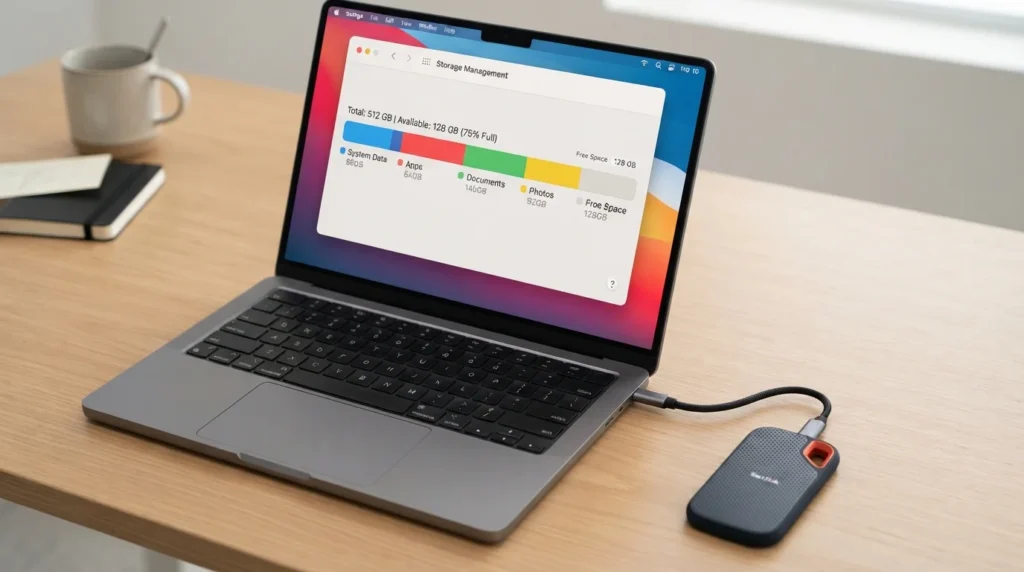
macOS needs breathing room. It uses spare disk space for virtual memory, temporary files, and updates. When your drive passes about 80 percent full, everything gets sluggish. Apple does not publish an exact number, but keeping 10 to 20 percent of your disk free is the common rule, and it makes a big difference.
Check yours: Apple menu, System Settings, General, then Storage. You will see what each category uses and a set of recommendations. Turn on Empty Trash Automatically so deleted files clear after 30 days. Use Store in iCloud to move photos on your Mac and old documents off the drive without losing them. Click More Info next to Applications and Documents to spot the biggest offenders.
One warning. Back up your Mac with Time Machine or an external drive before you delete anything you cannot replace.
Use Activity Monitor to Free Up RAM
Activity Monitor is the closest thing macOS has to a doctor. Open it from Applications, Utilities, or hit Command and Space and type its name.
Start on the CPU tab and click the % CPU column to sort. If one app sits at 100 percent or higher while you are doing nothing, that is your problem. Select it and click the X button to quit it. Then check the Memory tab and look at the memory pressure graph at the bottom. Green means you are fine. Yellow means you are tight. Red means your Mac genuinely needs more RAM.
Do not panic if “free memory” looks low. That is normal on macOS. It caches files in RAM on purpose and releases that space the moment an app needs it. Watch the pressure graph, not the free number.
Clean Up Your Mac and Delete Unneeded Files
Now clean your Mac properly. Open Finder, go to Applications, and sort by size. Drag out every app you installed once and never touched again. Old apps often leave helpers running in the background, so removing them frees up resources as well as space.
Next, clear the easy wins:
- Empty your Downloads folder. Old installers and zip files pile up fast.
- Delete duplicate photos from your Mac, then empty the Recently Deleted album in Photos.
- Move large video files to an external drive.
- Close unused browser tabs and remove extensions you do not recognise.
- Empty the Trash.
On browsers, Safari is the most efficient choice on a Mac. Chrome is the heaviest. If you live with 40 tabs open in Chrome, switching browsers alone can make your Mac run faster.
Manage Login Items for Faster Startup
Every app that launches at login steals CPU and memory before you open a single window. This is why some Macs take two minutes to become usable after startup.
Open System Settings, click General, then Login Items and Extensions. You will see two lists. The top one is apps that open at login, so select anything you do not need and click the minus button. The lower list shows background items that apps installed quietly, like updaters and sync helpers. Switch off the ones you recognise and do not need running all day.
Keep the essentials such as your password manager and cloud storage. Remove the rest. On an older Mac this one change can cut startup time in half, and it takes about a minute to do.
Upgrade Your Hard Drive to an SSD
If your Mac still uses a mechanical hard drive, this is the single biggest speed jump available. It mostly applies to pre 2013 MacBook Pro models, older iMacs, and some Mac Pro and Mac mini machines. Swapping that hard drive for an SSD drops boot times from over a minute to roughly 15 seconds, and apps open almost instantly. People describe it as running like new.
A word of honesty though. Every Mac sold in recent years already ships with an SSD, and on Apple silicon machines the storage and RAM are soldered to the chip. You cannot upgrade them. If you have an M1 or newer and it feels slow, the fix is software, not hardware.
| Fix | Time needed | Speed you gain | Best for |
|---|---|---|---|
| Restart your Mac | 2 minutes | Small to medium | Any Mac that has been on for days |
| Free up storage space | 15 minutes | Medium to large | Drives over 80 percent full |
| Trim login items | 1 minute | Medium at startup | Slow boot times |
| Quit CPU hogs in Activity Monitor | 5 minutes | Instant | Sudden slowdowns and hot fans |
| Add more RAM | 1 hour or a shop visit | Large | Older Intel Macs with 4 to 8 GB |
| Hard drive to SSD | 1 to 2 hours | Very large | Pre 2013 Macs with spinning disks |
Speed Up Your MacBook with macOS Updates
Updates are not just security patches. They fix memory leaks and bugs that slow down your Mac, and they keep your apps compatible. Incompatible software is one of the causes Apple itself points to when a Mac runs slowly.
Go to System Settings, General, then Software Update. Apple released macOS 27 Golden Gate on 14 September 2026, and it runs only on Apple silicon Macs. If you have an Intel Mac, macOS 26 Tahoe is your last stop, so stay updated within it instead.
One honest tip from experience. A new major version can feel slower for the first day or two while Spotlight rebuilds its index and iCloud syncs. Give it 48 hours before you judge. If it is still slow after that, open Activity Monitor and find the culprit.
Easy Ways to Speed Up a Slow Mac
Short on time? Do these five, in this order, and most slow Mac problems disappear:
- Restart your Mac and close the tabs you do not need.
- Check Activity Monitor and quit whatever is burning CPU.
- Free up storage until you have 15 percent or more spare.
- Cut your login items down to the essentials.
- Install the latest macOS your machine supports.
Do that once a month and your Mac stays quick. Ten minutes of maintenance beats a thousand dollar replacement.
Why is my Mac running slow all of a sudden?
A sudden slowdown usually has a single trigger. Common ones are a stuck app, a heavy browser session, a nearly full disk, an update finishing in the background, or unwanted software. Open Activity Monitor while it is happening and sort by CPU. The cause is normally sitting at the top of that list.
How much free storage should I keep on my Mac?
Aim for at least 10 to 20 percent of your total disk. On a 256 GB MacBook Air that means keeping roughly 25 to 50 GB free. macOS uses that headroom for swap, caches, and updates, so performance drops noticeably once you run out.
Do I need more RAM or a new Mac?
Check memory pressure in Activity Monitor. If it stays red with only a few apps open, you are short on RAM. For everyday work in 2026, 8 GB is the practical floor and 16 GB is comfortable. On Apple silicon you cannot add RAM later, so buy what you need up front. Replace the machine only when it is too old for current macOS and the software fixes above change nothing.
Are Mac cleaner apps safe to use?
Some are reputable, but you rarely need one. Everything in this guide uses tools Apple already gives you. Avoid any app that promises a miracle speed boost through a pop-up ad, and never install a cleaner you found through a browser redirect.
Your MacBook probably has more life in it than you think. Work through these steps in order, starting with the free ones, and you will feel the difference before you finish. Got a specific slowdown you cannot crack? Drop a comment on TechBySak and tell us your model and macOS version, and we will help you narrow it down.